 ExpressLRSIn the appUpdated
 The ELRS Lua script menu, on your phone
The ELRS Lua script is the menu ExpressLRS shows on your radio's screen: packet rate, telemetry ratio, switch mode, TX power, model match, VTX settings, Wi-Fi and Bind. FlySpark's ELRS Lua menu shows the same settings on your phone, read straight from the devices, with each folder as its own page and every list as a proper picker.
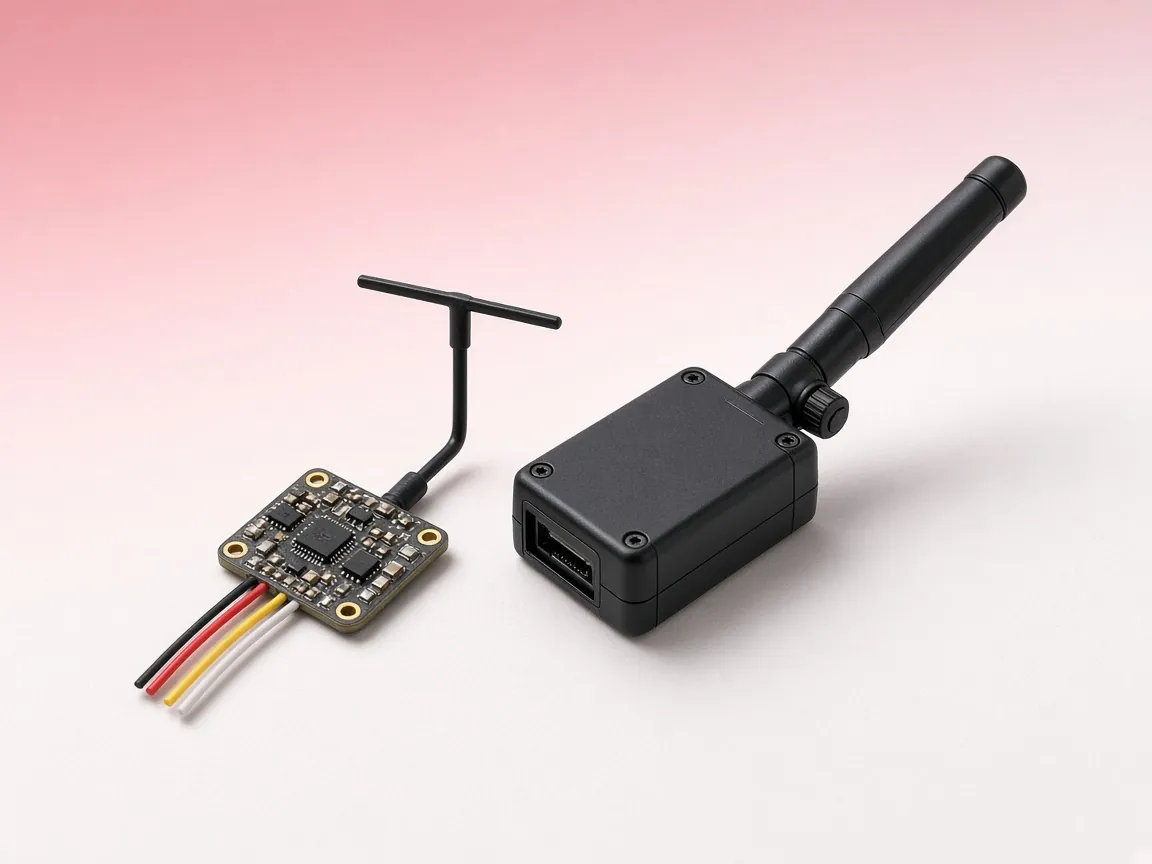
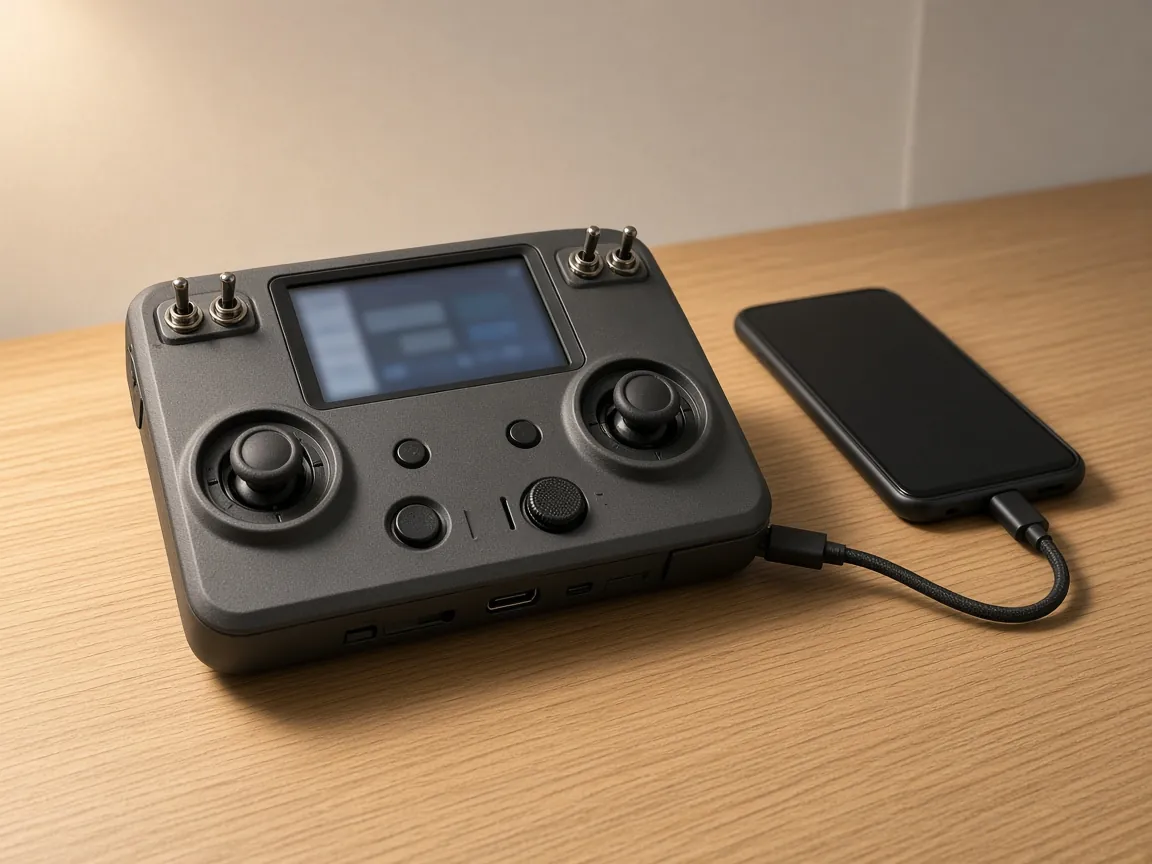
The phone reaches the ExpressLRS devices over a cable rather than Wi-Fi: through an EdgeTX radio plugged in over USB, through a Betaflight flight controller to the receiver on it, or through a USB-serial adapter on the bench. Nothing is installed on the radio, and the settings are stored on the TX module and receiver as usual.
This tool runs in the FlySpark app. The demo works in your browser.
- Free
- Demo without hardware
In short
The ELRS Lua script is ExpressLRS's settings menu on the radio: packet rate, telemetry ratio, TX power, model match, Wi-Fi and Bind. FlySpark's ELRS Lua menu shows the same settings on a phone, through an EdgeTX radio over USB, a Betaflight flight controller or a USB-serial adapter.
Key facts
- Three routes: an EdgeTX radio over USB (Android, radio USB-VCP set to CLI), a Betaflight flight controller to its receiver (Android and iPhone), or a USB-serial adapter (Android).
- EdgeTX route baud rates: 400000 (default), 115200, 921600 or 1870000, for the internal or external module bay.
- Receivers reached through a flight controller need ExpressLRS 3.5 or newer; the adapter route talks to receivers at 420000 baud.
- Setting types shown: choices, numbers, text, information, folders and commands; commands such as Bind ask for confirmation.
- Link status shows good and bad packets per second.
- On the EdgeTX route the radio stops driving the module until it is power-cycled.
- The web version is a demo with a simulated ExpressLRS 3.5 TX module and receiver; real hardware needs the app.
 Betaflight
 INAV
INAV ArduPilot
 PX4
PX4- BLHeli_S
 Bluejay
 AM32
AM32- ExpressLRS
 EdgeTX
 DroneCAN
 MAVLink
ExpressLRS
Features
- 01
Every device on the link
Lists the TX module, the receiver once it is linked, and any other device that answers, with its ExpressLRS version and how many settings it has.
- 02
Settings as the device sends them
Choices, numbers, text, information lines, folders and commands, in the device's own order and wording, so new firmware settings appear without an app update.
- 03
Link header
Connected or No link, packet rate, telemetry ratio, bad and good packets per second, an Armed warning, and messages such as Model Mismatch.
- 04
Commands with a confirm step
Bind, Enable WiFi, BLE Joystick and others run with a short warning first, then a dialog that follows the device's progress and asks when it needs a confirm.
- 05
Through your EdgeTX radio
On Android, the radio bridges its USB port to the internal or external RF module, so the phone talks to the TX module directly.
- 06
Receiver through the flight controller
Read and change receiver settings over Betaflight serial passthrough, with no radio switched on. Works on Android and iPhone.
- 07
Bench adapter
Wire a USB-serial adapter to a receiver or to a TX module's CRSF pin and the app acts as the flight controller or the radio.
- 08
Demo in the browser
A simulated ExpressLRS 3.5 TX module and receiver to learn the menus before you plug anything in.
What the ELRS Lua script is
ExpressLRS devices describe their own settings over CRSF, the serial protocol between radio, TX module, receiver and flight controller. The ELRS Lua script on an EdgeTX radio asks each device for that list and draws it as a menu. Because the device sends the list, the menu changes with the firmware: a TX module shows Packet Rate, Telem Ratio, Switch Mode, Model Match, a TX Power folder with max and dynamic power, VTX Administrator, WiFi Connectivity, BLE Joystick and Bind, and a receiver adds its own items such as output protocol and telemetry power.
FlySpark speaks the same CRSF parameter protocol. It discovers the devices, reads each one's tree, and shows it as pages you can scroll and tap. When you change a value, it writes it to the device and reads the folder back, because ExpressLRS adjusts related entries: the Telem Ratio choices follow the Packet Rate, for example.
Three ways to connect the phone
EdgeTX radio over USB (Android). On the radio, set USB-VCP to CLI in the hardware settings, plug the phone in with an OTG cable and choose USB Serial (VCP) on the radio. In FlySpark choose the internal or external module bay and the module baud rate (400000 by default; 115200, 921600 and 1870000 are offered too). The app sends the radio three CLI commands, set pulses 0, set rfmod power on and serialpassthrough rfmod, and from then on talks to the module directly. The radio stops sending stick data to that module until you power-cycle it, so do this on the bench, not before a flight.
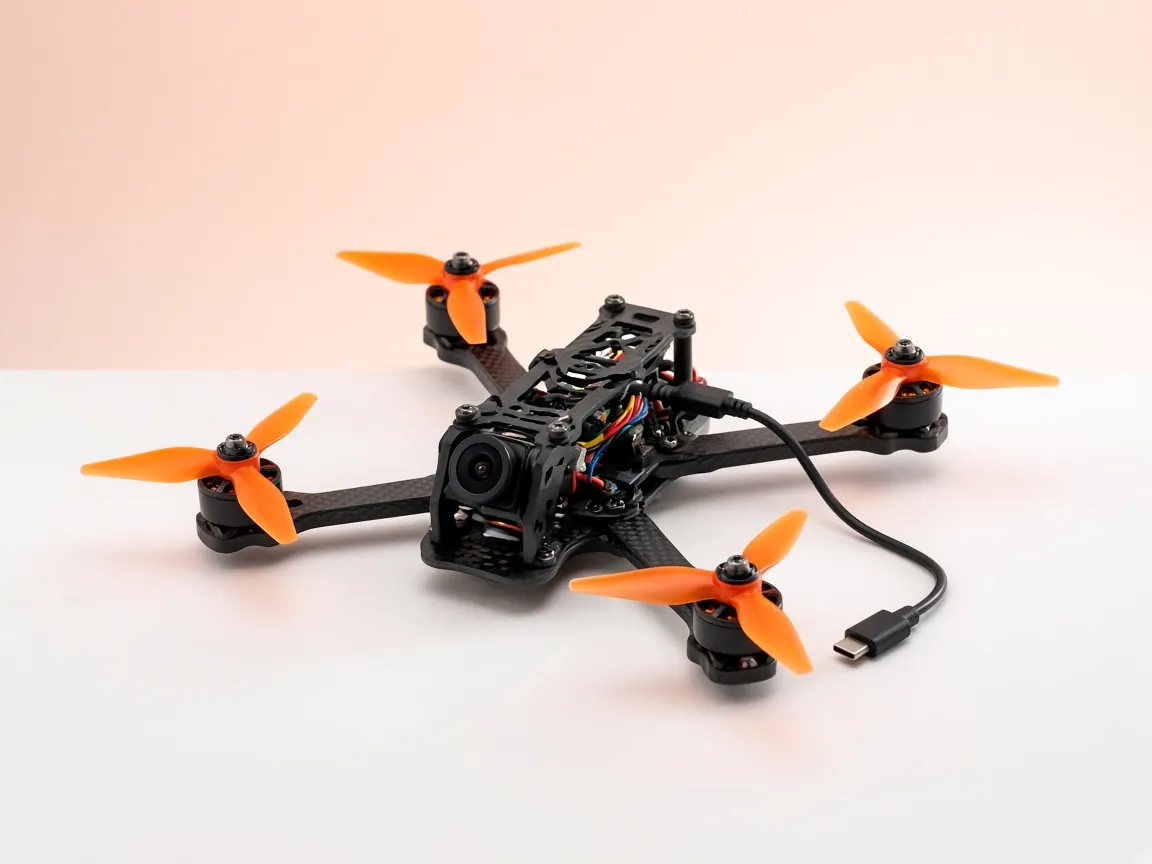
Betaflight flight controller (Android and iPhone). Connect FlySpark to the flight controller first, then choose this route. The app opens serial passthrough to the receiver's UART and acts as the flight controller would. The receiver must run ExpressLRS 3.5 or newer, because earlier receivers do not answer settings requests from their flight controller port. The flight controller stays in passthrough until it is power-cycled.
USB-serial adapter (Android). For a receiver, wire adapter TX to receiver RX and RX to TX at 420000 baud; the app plays the flight controller. For a TX module, connect the module's CRSF (S.Port) pin through a half-duplex adapter; the app plays the radio. Keep propellers off for anything that powers motors.
When the phone beats the radio screen
The Lua script on the radio is always there and needs no cable, and it remains the normal way to change packet rate before a flight. The phone helps when the radio screen is small or monochrome and the menu is deep, when you are setting up several receivers on the bench, or when you need to reach a receiver with no radio nearby: through the flight controller you can change its output protocol, telemetry power or bind storage.
For settings the Lua menu does not cover, such as the binding phrase, model match by Wi-Fi or a firmware update, use the ExpressLRS tool. For output power limits and backpack settings, see ELRS options and backpack.
Getting the ELRS Lua script onto your radio
FlySpark's menu does not need the script, but the radio does if you want the menu there too. The ExpressLRS Lua script belongs in SCRIPTS/TOOLS on the radio's SD card and appears in the radio's Tools menu as ExpressLRS. In the FlySpark Android app, the EdgeTX radio tool's Scripts tab can install elrs.lua from the ExpressLRS project's own release with one tap while the radio is in USB Storage mode, and lists or removes older copies.
At a glance
ELRS Lua menu requirements
| EdgeTX radio route | Android with USB OTG; radio USB-VCP set to CLI; internal or external module bay; 400000, 115200, 921600 or 1870000 baud |
|---|---|
| Flight controller route | Betaflight with the receiver on a Serial RX UART; receivers on ExpressLRS 3.5 or newer; Android and iPhone |
| Adapter route | Android with a USB-serial adapter; receiver at 420000 baud, TX module through a half-duplex adapter |
| Devices shown | TX module, linked receiver and any other device that answers CRSF parameter requests |
| Setting types | Choices, numbers, text, information, folders and commands |
| Demo | Simulated ExpressLRS 3.5 TX module and receiver, in the app and in the browser |
| Web browser | Demo only; real hardware needs the app |
Compare
ELRS Lua script on the radio vs FlySpark's ELRS Lua menu
| Feature | Lua script on the radio | FlySpark ELRS Lua menu |
|---|---|---|
| Where you read it | The radio's screen | The phone's screen, one page per folder |
| What it needs | The script in SCRIPTS/TOOLS and a model with the CRSF module on | A USB cable to the radio or adapter, or a connected Betaflight FC |
| Radio keeps flying the model meanwhile | Yes | Noon the EdgeTX route, until the radio is power-cycled |
| Reach a receiver with no radio on | No | Yesthrough the FC (ExpressLRS 3.5+) or an adapter |
| Run Bind, Wi-Fi and other commands | Yes | Yeswith a confirm step |
| Link status in view | Yesin the title bar | Yeswith good and bad packets per second |
ExpressLRS
How to open the ELRS Lua menu on a phone through an EdgeTX radio
Prepare the radio
Set USB-VCP to CLI in the radio's hardware settings.
Plug in
Connect the radio with an OTG cable and choose USB Serial (VCP) on its screen.
Connect
In FlySpark open ELRS Lua menu, choose EdgeTX radio over USB, pick the module bay and tap Connect.
Change and finish
Open the TX module, change settings, then power-cycle the radio so it drives the module again.
Guide 01
Change ELRS packet rate from your phone through an EdgeTX radio
Android app, OTG cable, radio running EdgeTX with an ExpressLRS module.
On the radio, open the hardware settings and set USB-VCP to CLI.
Plug the radio into the phone with the OTG cable and choose USB Serial (VCP) on the radio's screen.
Open ELRS Lua menu in FlySpark, choose EdgeTX radio over USB, pick Internal module or External module and leave the baud at 400000.
Tap Connect. The TX module appears under Devices; tap it.
Tap Packet Rate and pick the rate. Check Telem Ratio afterwards, since its choices follow the rate.
Disconnect, unplug and power-cycle the radio so it drives the module again.
Guide 02
Change receiver settings through a Betaflight flight controller
For an ExpressLRS 3.5 or newer receiver on a Betaflight flight controller.
Remove the propellers and connect FlySpark to the flight controller.
Open ELRS Lua menu and choose Betaflight flight controller, then Connect.
Tap the receiver under Devices and change what you need, for example Protocol or Tlm Power.
Power-cycle the flight controller to leave passthrough.
Guide 03
Bind an ExpressLRS receiver from the Lua menu
For receivers without a binding phrase, using the traditional bind.
Put the receiver in bind mode, for example by power-cycling it three times or with its button, as its manual describes.
Connect FlySpark to the TX module through the EdgeTX radio.
Open the TX module and tap Bind, then confirm.
Wait for the receiver LED to go solid; the receiver then appears under Devices after you look for devices again.
Guide 04
Start Wi-Fi on a TX module for an update
The quickest way into Wi-Fi mode when the radio is on the bench.
Connect to the TX module through the EdgeTX radio.
Open WiFi Connectivity and tap Enable WiFi, then confirm. The radio link stops while Wi-Fi runs.
Switch to the ExpressLRS tool in FlySpark. On Android it finds and joins the 'ExpressLRS TX' hotspot; on iPhone join it in Settings first.
Troubleshooting
Common problems and fixes
Problem
'No module answered'
Fix
On the radio, set Hardware, USB-VCP to CLI and choose USB Serial (VCP) when plugging in. Check the module bay (internal or external) and the baud rate, then power-cycle the radio before trying again.
Problem
'The radio refused serial passthrough'
Fix
FlySpark shows the radio's own reply after this message. Check that USB-VCP is set to CLI and that your EdgeTX version supports serial passthrough to the RF module; otherwise use the flight controller or adapter route.
Problem
'The receiver did not answer through the flight controller'
Fix
Receivers before ExpressLRS 3.5 do not answer settings requests from their flight controller port. Update the receiver, or reach it through the TX module while it is linked. Power-cycle the flight controller to leave passthrough.
Problem
Only the TX module shows, no receiver
Fix
The receiver appears once it is linked to the TX module. Power the receiver, wait for a solid LED, and tap Look for devices again.
Problem
'Plug in the radio or adapter over USB OTG first'
Fix
No USB device was found. Use a data cable and an OTG adapter, tap Look for USB, and accept Android's USB permission prompt.
Problem
Model Mismatch in the link header
Fix
Model match is on and the receiver's ID differs from the radio model's receiver ID. Set the same ID on both, or turn Model Match off.
Problem
Radio ExpressLRS script stuck on 'Loading…'
Fix
The ExpressLRS docs point to the radio setup: the active model needs the module set to CRSF and the module turned on. FlySpark's menu does not depend on that model setting, which helps to check whether the module itself answers.
Problem
ExpressLRS missing from the radio's Tools menu
Fix
The script is not in SCRIPTS/TOOLS. Install elrs.lua from the EdgeTX tool's Scripts tab in FlySpark, or copy it from the ExpressLRS releases.
Problem
Radio script shows a version mismatch or syntax error
Fix
The script and the module firmware are from different generations. Install the script that matches the module, or update the module.
Glossary
Glossary of terms
- Packet rate
- How many control packets per second the link sends. Higher rates cut latency; lower rates reach further.
- Telem Ratio
- How often the receiver sends telemetry back, as a share of packets. Its choices change with the packet rate.
- Switch Mode
- How AUX channels are packed into each packet, such as Wide or Hybrid.
- Dynamic power
- Lets the TX module lower its power when the link is strong and raise it up to Max Power when it weakens.
- USB-VCP
- The EdgeTX hardware setting for what the USB serial port does. Set to CLI, it accepts the commands FlySpark uses to reach the module.
- Serial passthrough
- A command that makes the radio or flight controller forward its USB port to another serial device, here the RF module or receiver.
- CRSF parameters
- The way ExpressLRS devices publish their settings list, which both the Lua script and FlySpark read.
FAQ
Frequently asked questions
Can I use the ELRS Lua script without a radio?
Yes, for receivers. Through a Betaflight flight controller FlySpark reaches a receiver on ExpressLRS 3.5 or newer with no radio on. A TX module can be reached with a USB-serial adapter on its CRSF pin.
Does FlySpark install anything on my radio?
Not for the Lua menu tool. It sends three CLI commands to open passthrough, and the radio returns to normal after a power cycle.
Why does my radio stop controlling the model after connecting?
Passthrough stops the radio sending its own data to the module. Power-cycle the radio when you are done.
Does it work on iPhone?
Yes, through a connected Betaflight flight controller to the receiver. The EdgeTX radio and adapter routes need USB host support, which is on Android.
Can I try the ELRS Lua menu in a browser?
Yes, the demo runs in the browser with a simulated ExpressLRS 3.5 TX module and receiver, including Bind and Wi-Fi commands.
Which settings will I see?
Whatever your devices publish. A typical TX module shows Packet Rate, Telem Ratio, Switch Mode, Model Match, TX Power, VTX Administrator, WiFi Connectivity, BLE Joystick and Bind.
Can I change the binding phrase here?
No, the Lua menu has no binding phrase entry. Set it over Wi-Fi in the ExpressLRS tool or the ELRS options page.
Where do I get the ELRS Lua script for my radio?
From the ExpressLRS releases, copied to SCRIPTS/TOOLS on the SD card. FlySpark's EdgeTX tool on Android can install it for you from the Scripts tab.
Why is the receiver missing from the device list?
Through the radio, the receiver only shows when it is linked to the TX module. Wait for a solid receiver LED and look for devices again.
Which baud rate should I pick for the module?
Start with 400000, the EdgeTX rate for ExpressLRS modules. Try another only if no module answers.
References
Sources
The official documentation behind the background facts on this page.
- ExpressLRS Lua ScriptExpressLRS · expresslrs.org
- Betaflight PassthroughExpressLRS · expresslrs.org
- Model MatchingExpressLRS · expresslrs.org
- Binding ExpressLRSExpressLRS · expresslrs.org
- ExpressLRS firmwareExpressLRS (GitHub) · github.com