 FlySpark
Betaflight Configurator in your browser and on your phone
Set up Betaflight in your browser or on Android: ports, PIDs, rates, OSD, modes, presets and CLI over USB or Bluetooth. Free, with a no-hardware demo.
Betaflight setup guides
Lay out the on-screen display of your quad on a preview of your goggles view. Drag battery voltage, flight time, RSSI, the artificial horizon and the rest of the elements to where you want them, then save the layout to the flight controller.
The editor is part of the FlySpark Betaflight and INAV configurators. It runs in Chrome or Edge over USB or Bluetooth, and in the FlySpark app on Android and iPhone.
Free. Hardware connections need Chrome or Edge on a computer; phones use the FlySpark app.
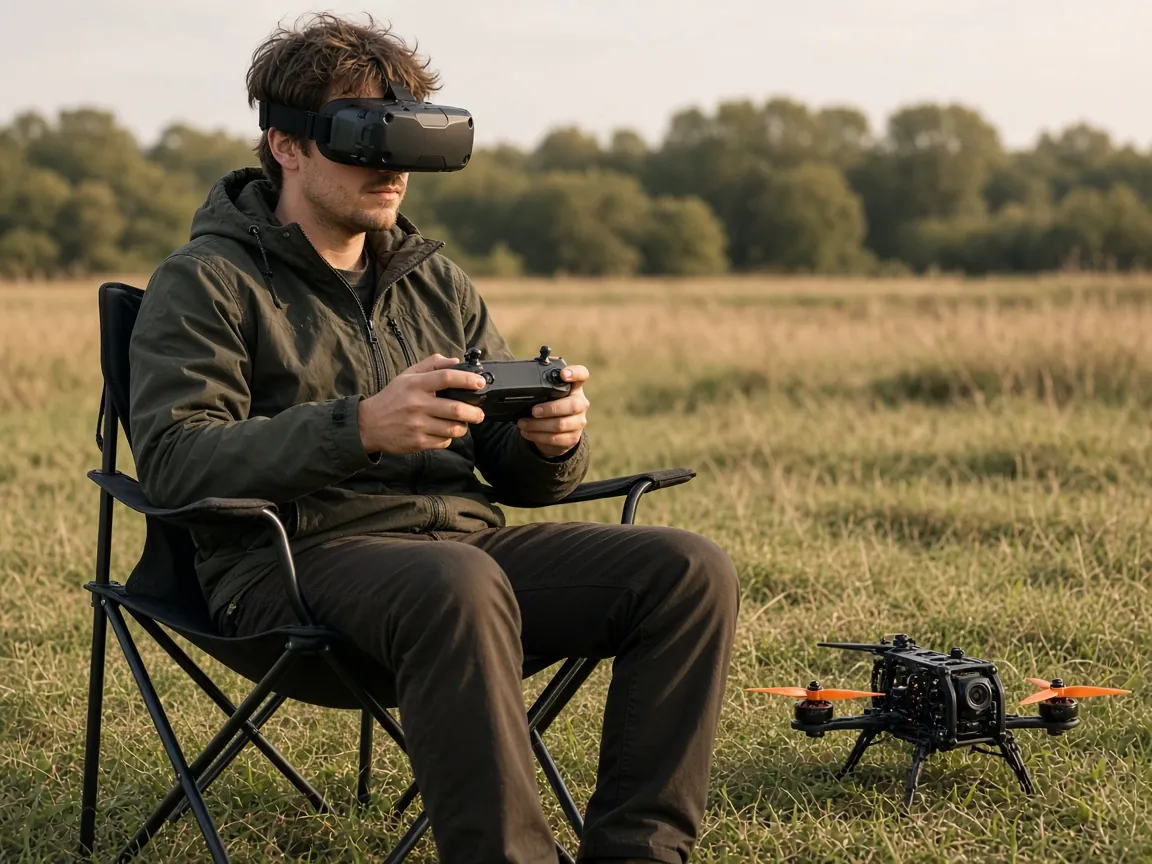
Move elements on a grid that matches the OSD character cells, then nudge them one cell at a time for the final position.
Auto, PAL and NTSC for analog cameras, and an HD canvas for digital systems such as DJI O3 and O4, Walksnail and HDZero.
Switch between the OSD profiles your board stores and edit each layout separately.
Set both timers, choose which warnings appear in flight and which statistics show after you disarm.
Pick a bundled font or your own .mcm file, preview every character, add a boot logo and upload it to an analog OSD chip.
INAV's custom elements, HUD, alarms, switch indicators and DJI OSD settings sit in the same tab.
A good OSD shows what you need at a glance and nothing else. Most pilots keep battery voltage or average cell voltage, flight time, link quality and a warnings area, and leave the middle of the screen clear so the view ahead stays open. Put the numbers you check most often near the corners your eyes already go to, and keep related readings close together.
The preview uses the same character grid as the flight controller, so what you place is what you see in the goggles. Use the PAL or NTSC setting that matches your camera, or Auto to let the board decide. For digital systems, choose the HD canvas, which gives you a wider grid with room for more elements.
Analog OSD chips store their font on the flight controller. FlySpark can upload a bundled font or an .mcm file you already have, shows every character before you send it, and can merge your own image in as the boot logo. Upload with the quad disarmed and powered from USB or a battery, and keep the cable steady until it finishes.
Digital systems draw their own fonts in the goggles, so the font card only appears when the board reports an analog OSD chip.
The Betaflight configurator and the INAV configurator both open this editor. On INAV it adds custom elements, the HUD, alarm thresholds and settings for DJI goggles using MSP OSD. While you are in the configurator, the rates and CLI pages are worth a look too.
Open FlySpark in Chrome or Edge, choose Betaflight and connect over USB or Bluetooth.
Pick the video system that matches your camera, or the HD canvas for digital goggles.
Turn on the elements you want and drag them into place on the preview.
Save to write the layout to the flight controller, then check it in your goggles.
Yes. Choose the HD canvas and place elements on the wider grid. The goggles draw the elements with their own font.
Yes, for analog OSD chips. Choose a bundled font or an .mcm file and upload it with the quad disarmed.
Yes. The INAV configurator has the same editor with INAV's extra elements and settings.
Yes. The demo opens a simulated flight controller with a working OSD tab.
Set up Betaflight in your browser or on Android: ports, PIDs, rates, OSD, modes, presets and CLI over USB or Bluetooth. Free, with a no-hardware demo.
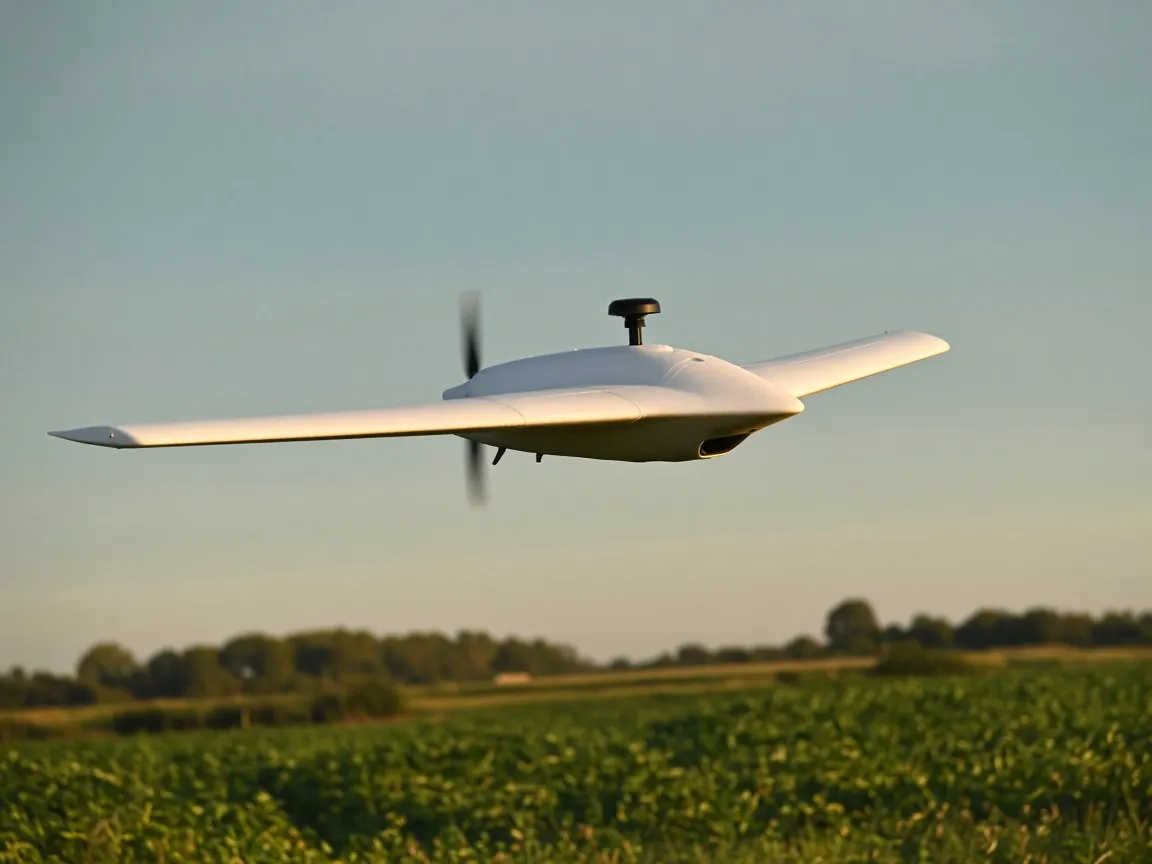
Configure INAV planes, wings and multirotors in your browser or on Android: mixer, navigation, waypoint missions, programming and OSD. Free demo inside.
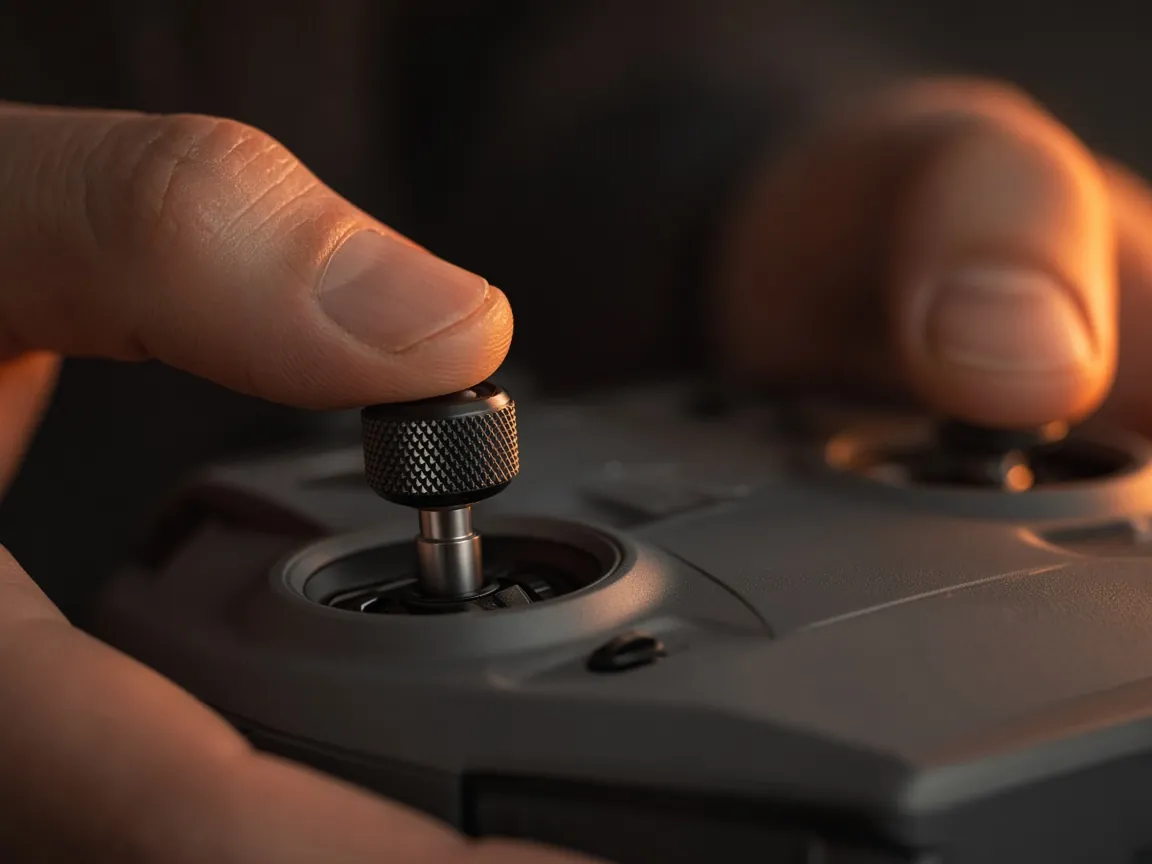
Set Betaflight rates in your browser with a live curve and max degrees per second for Actual, Betaflight, Quick, KISS and Raceflight rate types.
Use the Betaflight and INAV CLI in your browser with autocomplete and history. Save a diff all backup and restore it with firmware checks.
Free. Hardware connections need Chrome or Edge on a computer; phones use the FlySpark app.