 ExpressLRSIn the appUpdated
 ExpressLRS backpack and ELRS options from your phone
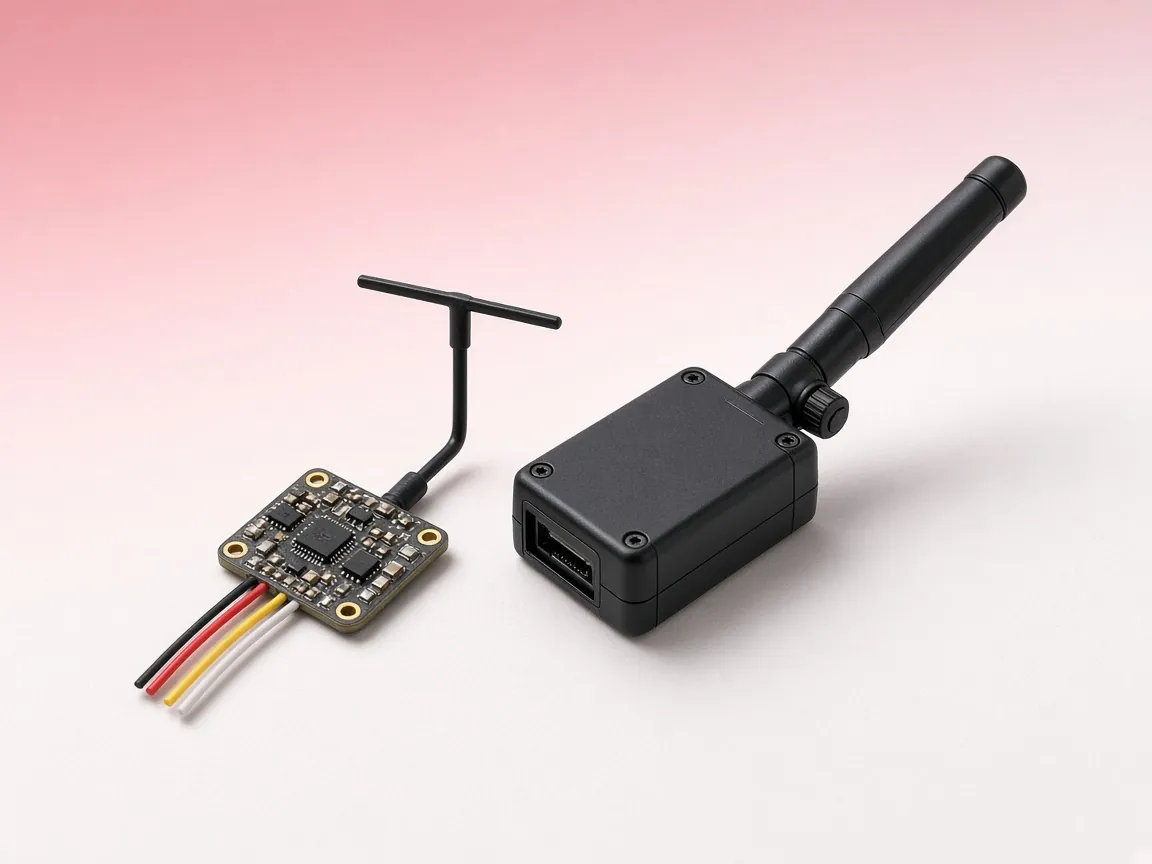
An ExpressLRS backpack is a small Wi-Fi chip that rides along with your TX module or sits inside your goggles or video receiver. It carries telemetry, video channel changes and DVR start and stop commands between them. FlySpark's ELRS options and backpack tool sets up the ExpressLRS backpack from your phone, and also edits the settings an ExpressLRS device keeps outside its firmware: runtime options, output power limits and Wi-Fi.
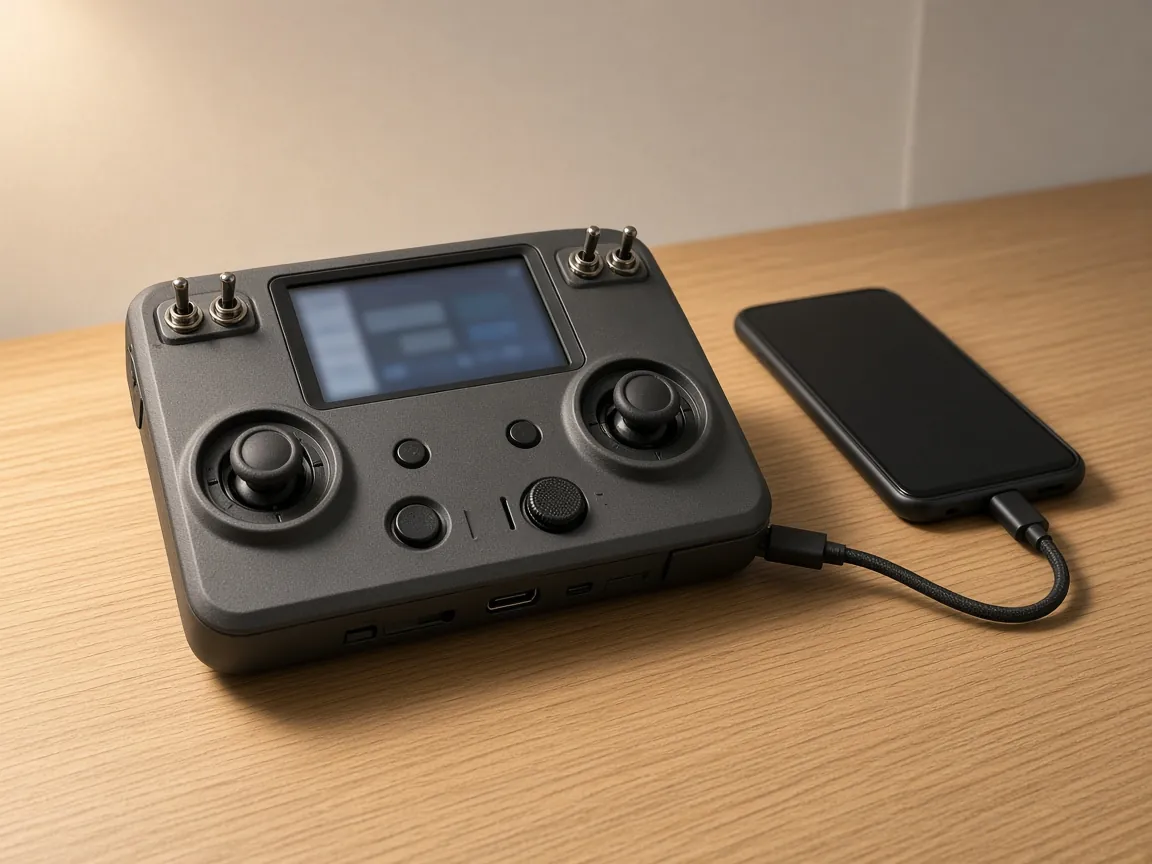
Everything goes over the device's own Wi-Fi web server, the same one the ExpressLRS web page uses, so nothing is reflashed. Connect to a TX module, a receiver, a TX backpack or a VRx backpack, change what you need, and the device applies it after a reboot. The tool is in the FlySpark app for Android and iPhone.
This tool runs in the FlySpark app. The demo works in your browser.
- Free
- Demo without hardware
In short
An ExpressLRS backpack is a Wi-Fi chip on a TX module or in goggles that carries telemetry, channel changes and DVR commands. FlySpark's app for Android and iPhone sets backpack telemetry, the DVR switch and delays, output power limits and Wi-Fi options over the device's own web server.
Key facts
- TX backpack settings need ExpressLRS 3.3 or newer on the TX module; runtime options and power limits need the 3.x web server or newer.
- Telemetry to the backpack: Off, ESP-NOW or Wi-Fi.
- DVR record switch: Off, or AUX1 to AUX8 high or low; start and stop delays of 0, 5, 15, 30 or 45 s, 1 or 2 min.
- Output power levels: 10, 25, 50, 100, 250, 500, 1000 and 2000 mW.
- Hotspots: ExpressLRS TX, RX, TX Backpack, VRx Backpack, Timer Backpack and AAT Backpack, password expresslrs; addresses 10.0.0.1, elrs_tx.local, elrs_rx.local, elrs_txbp.local and elrs_vrx.local.
- Receiver UART baud: 11 presets from 9600 to 1870000.
- VRx types recognised: HDZero, SkyZone SteadyView, SkyZone, ImmersionRC RapidFIRE, Fusion, Orqa, antenna tracker and race timer; the type is shown, not changed.
- Nothing is reflashed: settings go over Wi-Fi and the device applies them after a reboot.
 Betaflight
 INAV
INAV ArduPilot
 PX4
PX4- BLHeli_S
 Bluejay
 AM32
AM32- ExpressLRS
 EdgeTX
 DroneCAN
 MAVLink
ExpressLRS
Features
- 01
TX backpack settings
Turn the backpack on or off, send telemetry to it over ESP-NOW or Wi-Fi, and pick the AUX switch and delays that start and stop goggle DVR recording.
- 02
Output power limits
Edit the minimum, default, high and maximum power from the module's hardware file, from 10 mW to 2000 mW, with a check that the levels are in order.
- 03
Runtime options
Wi-Fi auto-on time, home Wi-Fi, regulatory domain on 900 MHz hardware, and a new binding phrase, saved without reflashing.
- 04
TX module options
Unlock higher power where the firmware offers it, telemetry report interval and fan minimum runtime.
- 05
Receiver options
Receiver UART baud to match your flight controller, and lock on first connection.
- 06
VRx backpack details
See which goggles or video receiver a backpack was built for, and send it onto your home Wi-Fi.
- 07
Every address in one tap
Chips for the device hotspot at 10.0.0.1 and the home network names elrs_tx.local, elrs_rx.local, elrs_txbp.local and elrs_vrx.local, or type any address.
- 08
Safe saves
Every key the device sends is kept, so a save never drops a setting the app does not show, and each save asks before rebooting the device.
What an ExpressLRS backpack does
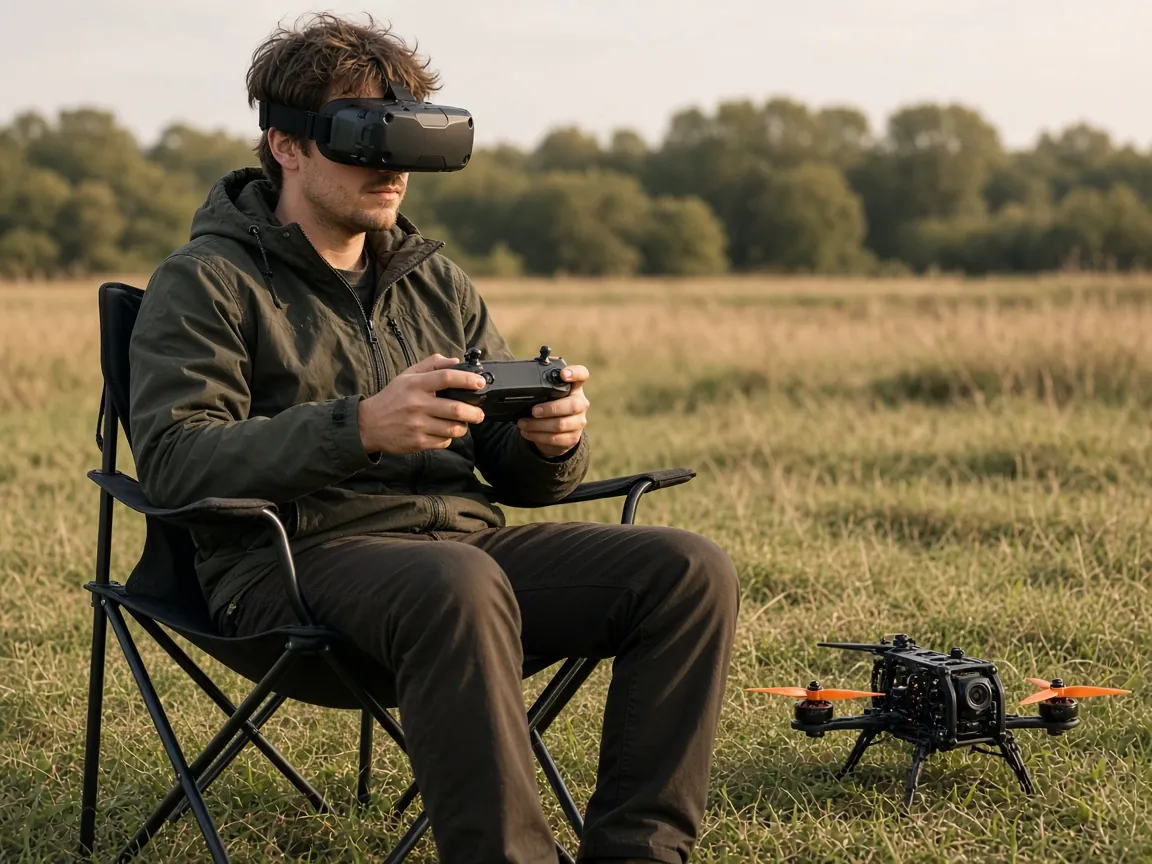
ExpressLRS has two kinds of backpack. A TX backpack is an ESP chip on or next to the transmitter module; many modules have one built in. A VRx backpack sits in the video side: inside HDZero goggles, or wired to a module such as SkyZone SteadyView, ImmersionRC RapidFIRE or another supported video receiver. Paired by the same binding phrase, the two talk over ESP-NOW, so the radio can change the video channel, start DVR recording from a switch and pass telemetry on, without a cable between them.
There are also backpacks for antenna trackers and race timers, each with its own hotspot. FlySpark recognises the TX, VRx, Timer and AAT backpack hotspots, and on a VRx backpack it reads which receiver the firmware was built for: HDZero, SteadyView, SkyZone, RapidFIRE, Fusion or Orqa.
How to connect to the module, receiver or backpack
Turn on the Wi-Fi of the device you want. On a TX module, open the ExpressLRS Lua script on the radio and choose WiFi Connectivity, then Enable WiFi for the module or Enable Backpack WiFi for its backpack. A receiver starts its own hotspot after a while without a link. HDZero goggles start their backpack Wi-Fi from the goggles' own menu.
Join the hotspot (the password is expresslrs) and connect to 10.0.0.1. On Android, the quickest route is the ExpressLRS tool: it searches for any 'ExpressLRS …' hotspot, joins it, and when it finds a backpack its FlySpark view opens this page. If the device is already on your home Wi-Fi, keep the phone on the same network and tap the matching .local chip instead.
When it connects, the device card shows the product name, whether it is a TX module, receiver or backpack, the firmware version and target, whether Wi-Fi is on its own hotspot or your home network, and the binding UID in use.
Runtime options without reflashing
Since ExpressLRS 3.0, many choices that used to be build flags live in an options file on the device. FlySpark reads that file, shows the options this firmware has, and writes it back with only your changes. Wi-Fi turns on after sets how many seconds without a link pass before the hotspot starts, or -1 for never. A home Wi-Fi name and password let the device join your network instead of starting a hotspot. On 900 MHz hardware you can pick the regulatory domain: AU915, FCC915, EU868, IN866, AU433, EU433, US433 or US433 wide.
A TX module adds unlock higher power (where the firmware still has it), the telemetry report interval and the fan's minimum runtime. A receiver adds its UART baud rate, which must match the flight controller (420000 for CRSF by default), and lock on first connection, which keeps the receiver on the packet rate it first links at. Saving reboots the device; its Wi-Fi turns off as it restarts.
Output power: limits versus everyday power
Each TX module has a hardware file from its maker that sets which output powers it may use. FlySpark shows the four limits from that file, minimum, default, high (the level that needs unlock) and maximum, and refuses to save if they are out of order. These are ceilings, not the power you fly with. Choose everyday power and dynamic power in the ELRS Lua menu or on the radio.
Raising a limit above what the amplifier is built for can overheat or damage the module, and may break your local radio rules, so FlySpark asks you to confirm before it saves and reboots.
At a glance
ExpressLRS backpack and options compatibility
| Runtime options and power limits | ExpressLRS 3.x web server and newer |
|---|---|
| TX backpack settings | ExpressLRS 3.3 and newer TX modules |
| Hotspots | ExpressLRS TX, ExpressLRS RX, ExpressLRS TX Backpack, ExpressLRS VRx Backpack, Timer and AAT backpacks; password expresslrs |
| Addresses | 10.0.0.1, elrs_tx.local, elrs_rx.local, elrs_txbp.local, elrs_vrx.local, or any IP address |
| Power levels | 10, 25, 50, 100, 250, 500, 1000 and 2000 mW |
| Telemetry to backpack | Off, ESP-NOW or Wi-Fi |
| DVR switch | Off, or AUX1 to AUX8, high or low; delays from 0 s to 2 min |
| Receiver UART baud | 9600 to 1870000; 420000 is the CRSF default |
| VRx types recognised | HDZero, SkyZone SteadyView, SkyZone, ImmersionRC RapidFIRE, Fusion, Orqa, antenna tracker, race timer |
| Platforms | FlySpark app for Android and iPhone; not in the web version |
Compare
Where each ExpressLRS backpack setting lives
| Setting | Other official place to change it | FlySpark |
|---|---|---|
| Backpack on or off, DVR switch and delays | ExpressLRS Lua script, Backpack folder | Backpack card, over Wi-Fi |
| Everyday TX power | ExpressLRS Lua script, TX Power | ELRS Lua menu tool |
| Output power limits | Device web UI | Output power card, with an order check |
| Wi-Fi interval, home Wi-Fi, UART baud | Device web UI, or build options in ExpressLRS Configurator | Runtime options card |
| VRx type of a backpack | Chosen when building backpack firmware in ExpressLRS Configurator | Shown, not changeable |
| Backpack home Wi-Fi | Backpack web UI | Join home Wi-Fi |
ExpressLRS
How to set up an ExpressLRS TX backpack for goggle DVR
Start the module's Wi-Fi
In the ExpressLRS Lua script on the radio, choose WiFi Connectivity, then Enable WiFi.
Connect
Join the 'ExpressLRS TX' hotspot, open ELRS options and backpack in FlySpark and connect to 10.0.0.1.
Pick the switch
In the Backpack card, turn the backpack on and set DVR record switch to your AUX channel.
Save
Tap Save backpack settings, then test the switch with the goggles in manual record mode.
Guide 01
Start and stop goggle DVR from a radio switch
For a TX module with ExpressLRS 3.3 or newer and a VRx backpack in your goggles, both paired to it.
On the goggles, set DVR recording to manual so the backpack can start and stop it.
On the radio, start the TX module's Wi-Fi from the ExpressLRS Lua script (WiFi Connectivity, Enable WiFi).
Open ELRS options and backpack in FlySpark and connect to the module at 10.0.0.1.
In the Backpack card, make sure Backpack enabled is on.
Set DVR record switch to the AUX channel and direction of your switch, for example AUX4 high.
Choose a DVR start delay and stop delay if you want recording to start late or keep running for a while after you flip the switch back.
Tap Save backpack settings. They take effect at once; flip the switch and check the goggles start recording.
Guide 02
Send telemetry to the backpack
Telemetry to the backpack feeds goggles or a ground station that listens to the TX backpack.
Connect FlySpark to the TX module over Wi-Fi.
In the Backpack card, set Telemetry to backpack to ESP-NOW or Wi-Fi, as the receiving device expects.
Tap Save backpack settings.
Guide 03
Put a VRx backpack on your home Wi-Fi
Useful when you update or check a backpack often.
Start the backpack's Wi-Fi and join its 'ExpressLRS VRx Backpack' hotspot.
Open ELRS options and backpack in FlySpark and connect to 10.0.0.1.
In the Backpack device card, check Built for, then enter your home Wi-Fi name and password.
Tap Join home Wi-Fi and confirm. The backpack leaves its hotspot.
Put the phone back on your home network and connect to elrs_vrx.local.
Guide 04
Change a TX module's output power limits
Only when your module maker's documentation says the hardware supports it.
Connect FlySpark to the TX module over Wi-Fi.
In Output power, set Minimum, Default, High and Maximum. Each must sit between minimum and maximum.
Tap Save power limits, read the warning and confirm. The module reboots with the new limits.
Set your everyday power in the ExpressLRS Lua script.
Troubleshooting
Common problems and fixes
Problem
'The device refused the save: it belongs to another firmware build'
Fix
The options file carries an ID of the firmware build, and the device rejects options read from a different build. Tap the refresh button to read the settings again, redo the change and save.
Problem
'… is not available on this firmware'
Fix
The device runs firmware older than the 3.x web server. Update it with the ExpressLRS tool first.
Problem
No Backpack card for my TX module
Fix
Backpack settings are read through the module's settings export, added in ExpressLRS 3.3. Update the module, or use the Backpack folder of the ExpressLRS Lua script.
Problem
'Minimum power is above maximum' or 'Default power must be between minimum and maximum'
Fix
The four limits must rise in order: minimum, then default and high, then maximum. Fix the order and the save button returns.
Problem
'No ExpressLRS device at 10.0.0.1' or 'No answer from 10.0.0.1'
Fix
The phone is not on the device's hotspot, or the device's Wi-Fi turned off. Join the hotspot again, or on Android let the ExpressLRS tool find and join it.
Problem
Built for shows 'Unknown'
Fix
The backpack's product name did not name a known video receiver. The VRx type is fixed by the backpack firmware; reflash the backpack target for your goggles with ExpressLRS Configurator if it is wrong.
Problem
Cannot find the backpack after Join home Wi-Fi
Fix
Put the phone on the same network and try elrs_vrx.local or elrs_txbp.local. If the name does not resolve, look up the backpack's IP address in your router's device list and type it in the Address field.
Problem
Goggles do not start DVR from the switch
Fix
Check that the goggles are set to manual recording, that the TX backpack and goggle backpack are paired with the same binding phrase and run matching backpack versions, and that the AUX channel and direction match your switch.
Glossary
Glossary of terms
- TX backpack
- An ESP chip with or inside the transmitter module that relays commands and telemetry to other ExpressLRS devices.
- VRx backpack
- A backpack in goggles or wired to a video receiver module, which changes channels and controls DVR when the TX backpack tells it to.
- ESP-NOW
- A direct radio link between ESP chips, without a Wi-Fi network, used between ExpressLRS backpacks.
- Runtime options
- Settings stored in an options file on the device and read at boot, so they change without reflashing.
- Hardware file
- The maker's description of a device's pins and power levels. The power limits FlySpark edits come from it.
- Unlock higher power
- An option on some TX modules that allows power above their safe default, usually with a fan or extra cooling.
- Lock on first connection
- A receiver option that keeps the packet rate it first linked at instead of cycling through rates.
FAQ
Frequently asked questions
What is an ExpressLRS backpack?
A small ESP chip that talks to other ExpressLRS devices over ESP-NOW. A TX backpack sits with the transmitter module; a VRx backpack sits in the goggles or video receiver. Together they change video channels, start DVR and pass telemetry.
How do I get into the ELRS backpack Wi-Fi?
From the ExpressLRS Lua script choose WiFi Connectivity, then Enable Backpack WiFi, and join the 'ExpressLRS TX Backpack' or 'ExpressLRS VRx Backpack' hotspot with the password expresslrs. Goggles with a built-in backpack start it from their own menu.
Can I change ELRS output power from my phone?
Yes. Everyday power is in FlySpark's ELRS Lua menu. The power limits from the module's hardware file are on the ELRS options and backpack page.
Does FlySpark flash backpack firmware?
No. Build and flash backpack firmware with ExpressLRS Configurator. On Android you can open the backpack's own web page inside FlySpark from the ExpressLRS tool and upload a firmware file there.
Can I change which goggles my VRx backpack is for?
No, that is fixed by the backpack firmware. FlySpark shows what it was built for; reflash the right target to change it.
Why does my module's Wi-Fi turn off after saving?
Runtime options and power limits apply at boot, so the device reboots after a save and leaves Wi-Fi mode. Start Wi-Fi again for more changes.
Does this work on iPhone?
Yes. Join the device's hotspot in the iPhone's Wi-Fi settings first, then open ELRS options and backpack. Automatic hotspot search is Android only.
Can I use it in a web browser?
No. A web page cannot join the device's hotspot, so this tool is only in the Android and iPhone apps.
Will a save remove settings FlySpark does not show?
No. FlySpark keeps every key the device sent and writes them all back with your changes.
Which receiver UART baud should I use?
The one your flight controller expects. For CRSF on Betaflight or INAV that is usually the default 420000.
References
Sources
The official documentation behind the background facts on this page.
- TX Backpack SetupExpressLRS · expresslrs.org
- VRx Backpack SetupExpressLRS · expresslrs.org
- Backpack TelemetryExpressLRS · expresslrs.org
- ExpressLRS Lua ScriptExpressLRS · expresslrs.org
- The Web UIExpressLRS · expresslrs.org
- ExpressLRS BackpackExpressLRS (GitHub) · github.com