 FlySparkBetaflight setup guidesUpdated
 Live gyro and accelerometer
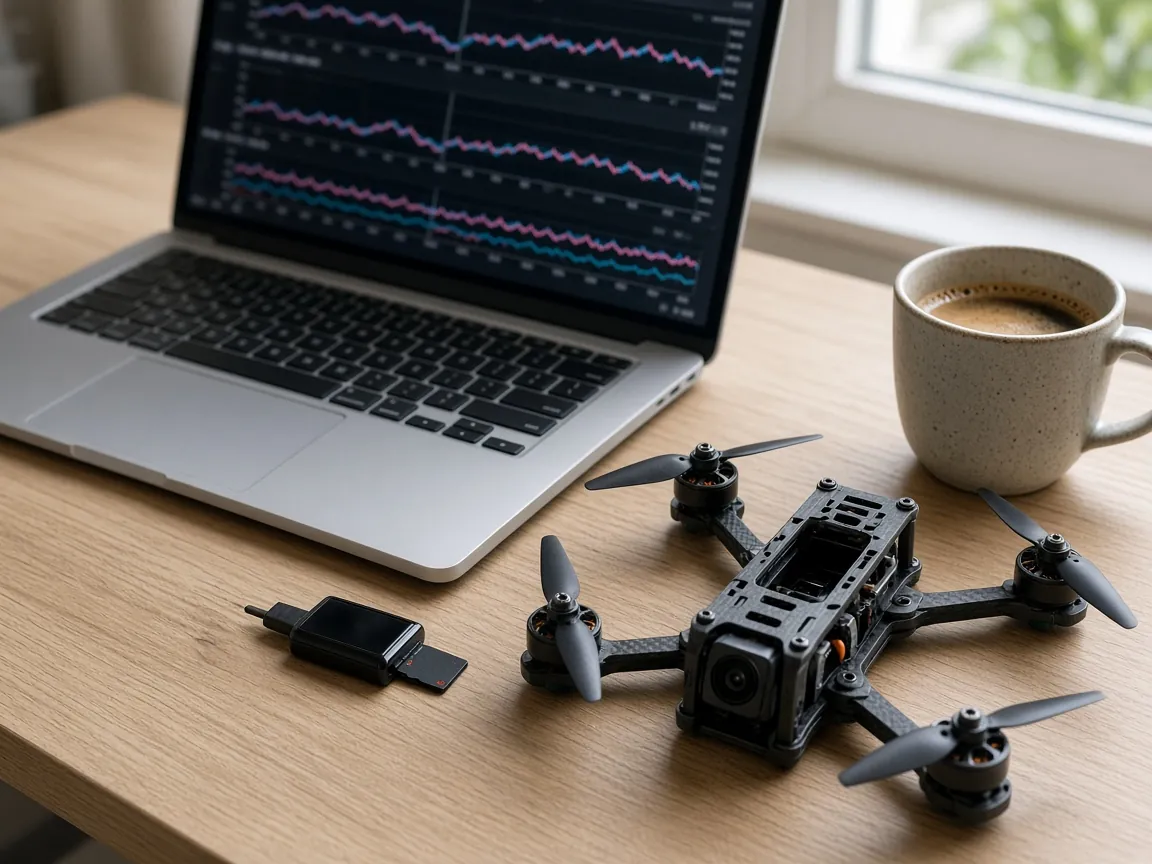
The sensors tab is a live picture of the board, not a settings form. FlySpark graphs the gyro on every board, and adds the accelerometer, compass, barometer and rangefinder when the flight controller reports them.
A gyro that sits near 0 degrees per second while the craft is still is a quiet board. Spikes at rest point to a loose flight controller or vibration. Level and still, the accelerometer reads X and Y near 0 g and Z near 1 g.
The sample rate is 10, 20 or 50 Hz. Faster rates use more of the link, and 20 Hz suits Bluetooth. Changing the rate clears the graphs. Pause freezes them. The demo draws a simulated gyro, accelerometer and compass so you can see the traces without a board.
Free. Hardware connections need Chrome or Edge on a computer; phones use the FlySpark app.
- Free
- Nothing to install
- Demo without hardware
In short
The sensors tab graphs the gyro, accelerometer, compass and barometer while you move the craft. A still gyro sits near 0 degrees per second. Level and still, the accelerometer reads about 0 g, 0 g and 1 g.
Key facts
- Sample rates are 10, 20 and 50 Hz. 20 Hz suits Bluetooth. Changing the rate clears the graphs.
- The gyro is roll, pitch and yaw in degrees per second. Still, it sits near 0.
- Level and still, accelerometer X and Y are near 0 g and Z is near 1 g.
- The compass is in gauss. X and Y swing as you turn the craft.
- The barometer is altitude in metres since power-on.
- Airspeed is an INAV graph, in metres per second. Betaflight debug shows 8 channels, INAV 4.
- Pause freezes the traces. A missing sensor stays off in the chip row.
- Chrome or Edge uses USB or Bluetooth. iPhone has no USB host.
 Betaflight
 INAV
INAV ArduPilot
 PX4
PX4- BLHeli_S
 Bluejay
 AM32
AM32 ExpressLRS
 EdgeTX
 DroneCAN
 MAVLink
Try it
Shake the trace
A still gyro sits near zero. Shake it and the line moves. 20 Hz suits Bluetooth.
Still
0 °/s
FlySpark
Features
- 01
Gyro, always
Roll, pitch and yaw in degrees per second. It is drawn even when the other sensors are missing. Still and quiet, the lines sit near 0.
- 02
Accelerometer
X, Y and Z in g, shown when the board reports one. Level and still: X and Y near 0, Z near 1 g. The chip turns off when the sensor is absent.
- 03
Compass
X, Y and Z in gauss. X and Y swing as you turn the craft. Jumps while the motors spin mean the compass is picking up battery current.
- 04
Barometer
Altitude in metres since power-on. Cover the sensor with foam if the line drifts in wind or prop wash.
- 05
10, 20 or 50 Hz
20 Hz is the start, and it suits Bluetooth. 50 Hz uses more of the link. Changing the rate clears every graph.
- 06
Pause and debug
Pause freezes the traces. Debug graphs the channels chosen on the configuration tab: 8 on Betaflight, 4 on INAV.
What a still board looks like
Put the craft on the bench and watch the gyro. Roll, pitch and yaw should sit near 0 degrees per second. A line that jumps while nothing is touching the craft is vibration or a loose stack, not a rate you asked for. The hint on the gyro card says the same.
The accelerometer is the check that the board knows which way is down. Level and still, X and Y are near 0 g and Z is near 1 g. If Z is near 1 g but X or Y is far from 0, the board is tilted, or the accelerometer trim on the configuration tab is pulling it. A calibration on the Setup tab replaces that trim.
The chips above the graphs are the sensors this board reported. Gyro is always on. Accelerometer, compass, barometer and rangefinder light only when the status bit is set. A dark chip means the firmware does not see that sensor. Turning the hardware switch off on the configuration tab is a different step: that tells the firmware not to use a sensor it does have.
Roll is the first gyro line, then pitch, then yaw. Read one axis at a time. If only yaw jumps while the craft sits still, the stack is twisting, not the whole frame shaking. If all three jump together, something is vibrating the flight controller.
Compass, barometer and rangefinder
The compass graph is in gauss. Turn the craft and X and Y should swing. A compass that jumps when the motors spin is hearing the current in the battery wires. Move it, or twist those wires, before you trust a heading. Aligning an INAV compass and running its calibration sweep is the compass guide, not this graph.
The barometer is altitude in metres since the board powered on, not height above the ground. It will drift in wind and in prop wash. Foam over the sensor is the usual fix. The line is a fill, so a slow climb is easy to see.
The rangefinder is distance in centimetres, and it appears only when the board reports one. It is not the barometer. One is a sensor looking at the ground. The other is air pressure since power-on.
Airspeed is an INAV graph, in metres per second. It stays hidden on Betaflight. Near 0 in still air is right. Blow gently into the pitot tube and the line should rise. INAV can also show temperature sensors, LM75 or DS18B20, with a label, an OSD symbol and alarms. The alarm scale runs from -55 to 125 °C. A firmware build without temperature sensors hides that card.
Sample rate, pause and debug
The rate buttons are 10, 20 and 50 Hz. The tab starts at 20. The footer says faster rates use more of the link, and 20 Hz suits Bluetooth. A USB link can take 50 Hz. If the graphs stutter on Bluetooth, drop to 10 or stay at 20. Changing the rate clears every trace, so do it before you start a test, not in the middle of one.
Pause stops new samples. The lines stay where they were, which is how you read a spike after it happened. Resume continues. Pause does not change the sample rate.
Debug values are off until you turn them on. Betaflight draws 8 debug channels. INAV draws 4. The numbers are whatever debug mode was chosen on the configuration tab, the same names as set debug_mode in the CLI. None leaves them at zero. The debug graph is not a blackbox log. The log viewer is a separate page.
The demo answers these graphs with a simulated gyro, accelerometer and compass, including a little noise that grows when the motors are spinning. It is there so the traces have a shape before a board is connected. A real board replaces it.
Read it with the props off
Props off for the first look, the same as a motor test. A gyro that is quiet on the bench and wild when you spin a motor by hand is a mounting problem. A compass that is smooth in your hand and noisy on the craft is current, not a bad chip.
Chrome or Edge connects over USB or Bluetooth. Android adds Wi-Fi. iPhone uses Bluetooth or Wi-Fi and has no USB host. On Bluetooth, leave the rate at 20 Hz unless the link is clearly keeping up.
Calibration of the accelerometer is the Setup tab. Board alignment, the sensor on-off switches and the debug mode are the configuration tab. This page is only the live picture.
FlySpark
Read the sensors
Open the graphs
Connect and open Sensors. The gyro is always there. The other chips light when the board reports that sensor.
Hold it still
The gyro should sit near 0 degrees per second. Level, the accelerometer is about 0 g, 0 g and 1 g.
Pick a rate
10, 20 or 50 Hz. Start at 20, which suits Bluetooth. Changing the rate clears the graphs.
Pause on a spike
Pause freezes the lines so you can read them. Debug, if you turn it on, graphs the mode chosen on the configuration tab.
Troubleshooting
Common problems and fixes
Problem
The gyro jumps while the craft is still
Fix
The flight controller is loose, or something is vibrating. A still gyro sits near 0 degrees per second.
Problem
Accelerometer Z is not near 1 g
Fix
The craft is not level, the board alignment is wrong, or the accelerometer trim is set. Level it, then check alignment and the Setup calibration.
Problem
The compass jumps when the motors spin
Fix
It is picking up battery current. Move the compass or twist the power wires. The graph is in gauss.
Problem
The graphs stutter on Bluetooth
Fix
Drop the sample rate to 20 or 10 Hz. 50 Hz uses more of the link. Changing the rate clears the traces.
FAQ
Frequently asked questions
What does the Betaflight sensors tab show?
Live graphs. The gyro is always there. Accelerometer, compass, barometer and rangefinder appear when the board reports them.
What should the gyro read when it is still?
Near 0 degrees per second on roll, pitch and yaw. Spikes at rest point to a loose flight controller or vibration.
What should the accelerometer read when it is level?
X and Y near 0 g, Z near 1 g. That is the check that the board knows which way is down.
Which sample rate should I use?
10, 20 or 50 Hz. The tab starts at 20, and 20 Hz suits Bluetooth. Faster rates use more of the link. Changing the rate clears the graphs.
Why is a sensor chip dark?
The board did not report that sensor. Gyro stays on. The others light only when the status bit is set.
What is the barometer graph?
Altitude in metres since power-on, not height above the ground. Foam over the sensor helps if it drifts in wind or prop wash.
Does INAV show the same graphs?
INAV adds airspeed in metres per second, and temperature sensors when the firmware has them. Debug is 4 channels on INAV and 8 on Betaflight.
What do the debug lines show?
The values chosen by debug mode on the configuration tab. None leaves them at zero. They are not a blackbox log.
Does the demo draw sensors?
Yes. It simulates a gyro, an accelerometer and a compass, with a little noise that grows when the motors spin. A real board replaces it.
Can I watch the sensors in Chrome?
Yes. Chrome or Edge connects over USB or Bluetooth. Android adds Wi-Fi. iPhone uses Bluetooth or Wi-Fi and has no USB host.
References
Sources
The official documentation behind the background facts on this page.
- Betaflight WikiBetaflight · betaflight.com
- Betaflight Setup GuideBetaflight · betaflight.com
- INAV WikiINAV on GitHub · github.com