 FlySparkDefence and field opsUpdated
MAVLink signing that says what it is
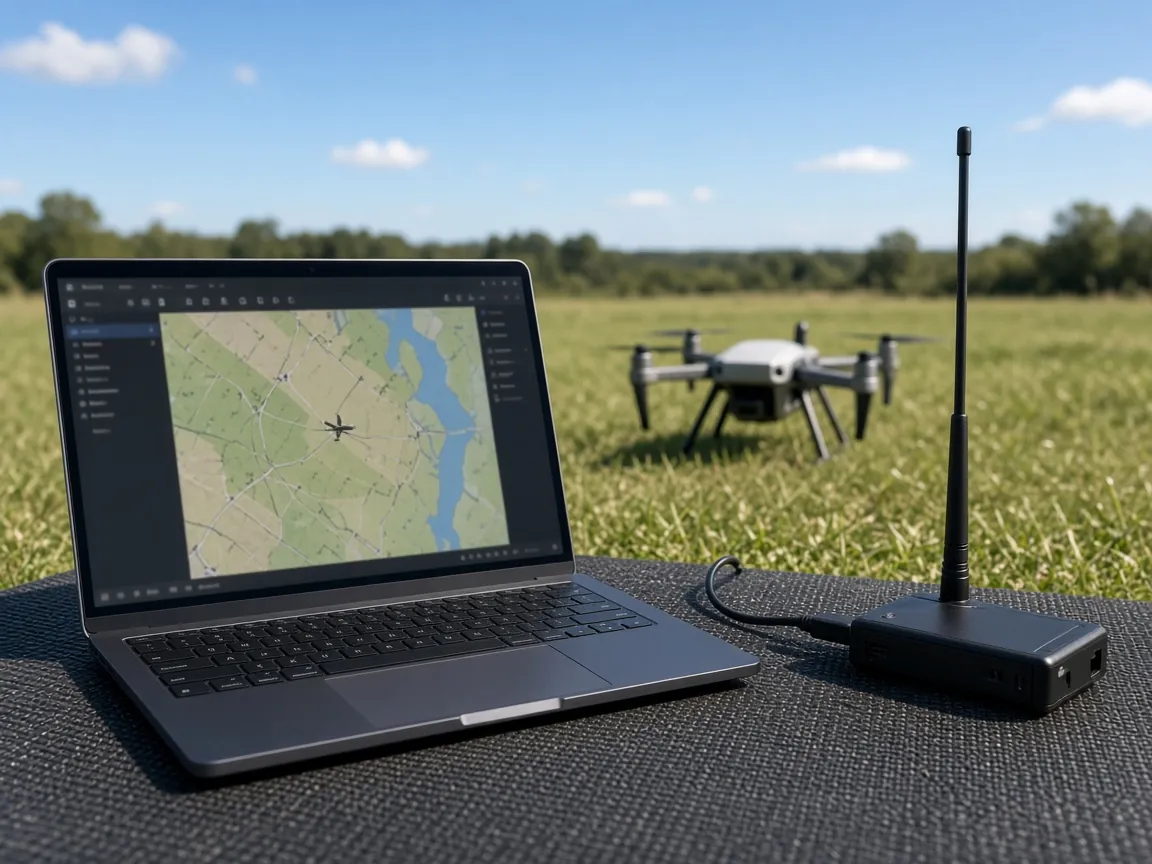
MAVLink 2 signing attaches a short authentication code to frames so a ground station can tell whether the airframe accepts its key. FlySpark stores a passphrase-derived key compatible with Mission Planner and QGroundControl, can send it to the vehicle on USB or simulated links, and shows honesty banners in the GCS.
Network links block key send. BLE warns. FlySpark never labels signing as encryption or AES. Pair this page with the defence GCS hub and the full MAVLink ground station.
Free. Hardware connections need Chrome or Edge on a computer; phones use the FlySpark app.
- Free
- Nothing to install
- Demo without hardware
In short
FlySpark can set a MAVLink 2 signing key, send it over a trusted link, and show unsigned, mismatch or verified banners. Signing authenticates frames. It does not encrypt the radio.
Key facts
- Signing ≠ encryption
- Key send blocked on raw network links
- Verified frame counts appear in the GCS
- Works with ArduPilot and PX4 MAVLink 2
 Betaflight
 INAV
 ArduPilot
 PX4
- BLHeli_S
 Bluejay
 AM32
 ExpressLRS
 EdgeTX
 DroneCAN
 MAVLink
Try it
Flip the banner
Unsigned, mismatch or signed — never called AES.
Unsigned
Signing authenticates frames. It does not encrypt the radio.
FlySpark
Features
- 01
Passphrase key
Same style of key string used in common GCS tools.
- 02
Trust rules
USB and simulated are trusted for key send; network is blocked; BLE warns.
- 03
Live banners
Unsigned, mismatch when the vehicle signs but this app cannot verify, signed when verified frames exist.
- 04
Honesty copy
UI text never claims encryption.
When to use signing
Use signing when you need to reject unsigned command traffic on a shared link. It does not hide telemetry from a radio sniffer.
Load the same key on every station that must talk to that vehicle. A mismatch banner means the vehicle is signing with a key this session does not hold.
How FlySpark sends the key
Open the signing page from the GCS tools row or the defence hub. Enter the passphrase, confirm trust for the current link, then send. USB is the normal path at the bench.
Signing is not encryption
MAVLink signing proves which key signed a frame. It does not encrypt the link. FlySpark shows honesty banners so operators do not confuse authentication with secrecy.
Use signing when your vehicles and ground station share keys and your SOP requires it. Stock radios only — do not invent a fake “AES MAVLink” story around this screen.
Open from the MAVLink ground station path (?open=mavlink) and read the banner before you treat the link as private. See the MAVLink ground station guide for connect and mission flow.
Practical checks
If frames fail signature checks, confirm key material and UTC clock skew before you blame the radio. Signing errors are often time or key mismatch, not range.
FlySpark
Turn on signing
Turn on signing
Connect over USB in Chrome, Edge or the Android app.
Turn on signing · 2
Open Signing, enter the passphrase, send the key.
Turn on signing · 3
Confirm the banner moves to signed after verified frames arrive.
Troubleshooting
Common problems and fixes
Problem
Network block hint
Fix
Key send over UDP or TCP is blocked. Use USB at the bench.
Problem
Mismatch stays on
Fix
Wrong passphrase or the vehicle still has an old key. Re-send from a trusted link or clear signing on the airframe per its docs.
FAQ
Frequently asked questions
Is this AES encryption?
No. Signing authenticates. FlySpark does not claim AES on the air link.
Can I sign over Wi-Fi?
Key send is blocked on network links. Use USB to install the key.
Does Betaflight use this?
This flow is for MAVLink vehicles. Betaflight has its own tools.
References
Sources
The official documentation behind the background facts on this page.
- FlySpark appFlySpark · app.flyspark.in
- MAVLink developer guideMAVLink · mavlink.io